
Branded QR Codes: Add Custom Logos, Rounded Dots, and Auto-Matched Colors to Your QR Codes
Published on February 02, 2026
Branded QR Codes: Custom Logos, Styled Dots, and Intelligent Color Matching
QR codes are everywhere, but most of them look the same: a grid of black-and-white squares that says nothing about who created them. WebLight.app's enhanced QR Code Generator changes that by letting you create branded, visually distinctive QR codes with custom logo overlays, multiple dot styles, and automatic color extraction from your logo.
Brand the Code Without Losing Readability
A logo and matching colors can identify the organization behind a QR code. Include a clear label explaining where the code leads, such as a menu, event schedule, or guest WiFi network.
Clear contrast, enough whitespace, and an appropriate display size make a QR code easier for phones to scan. Styling can reduce readability, so test the finished code on the screen and at the distance people will use it.
Logo Overlay: Your Brand in the Center
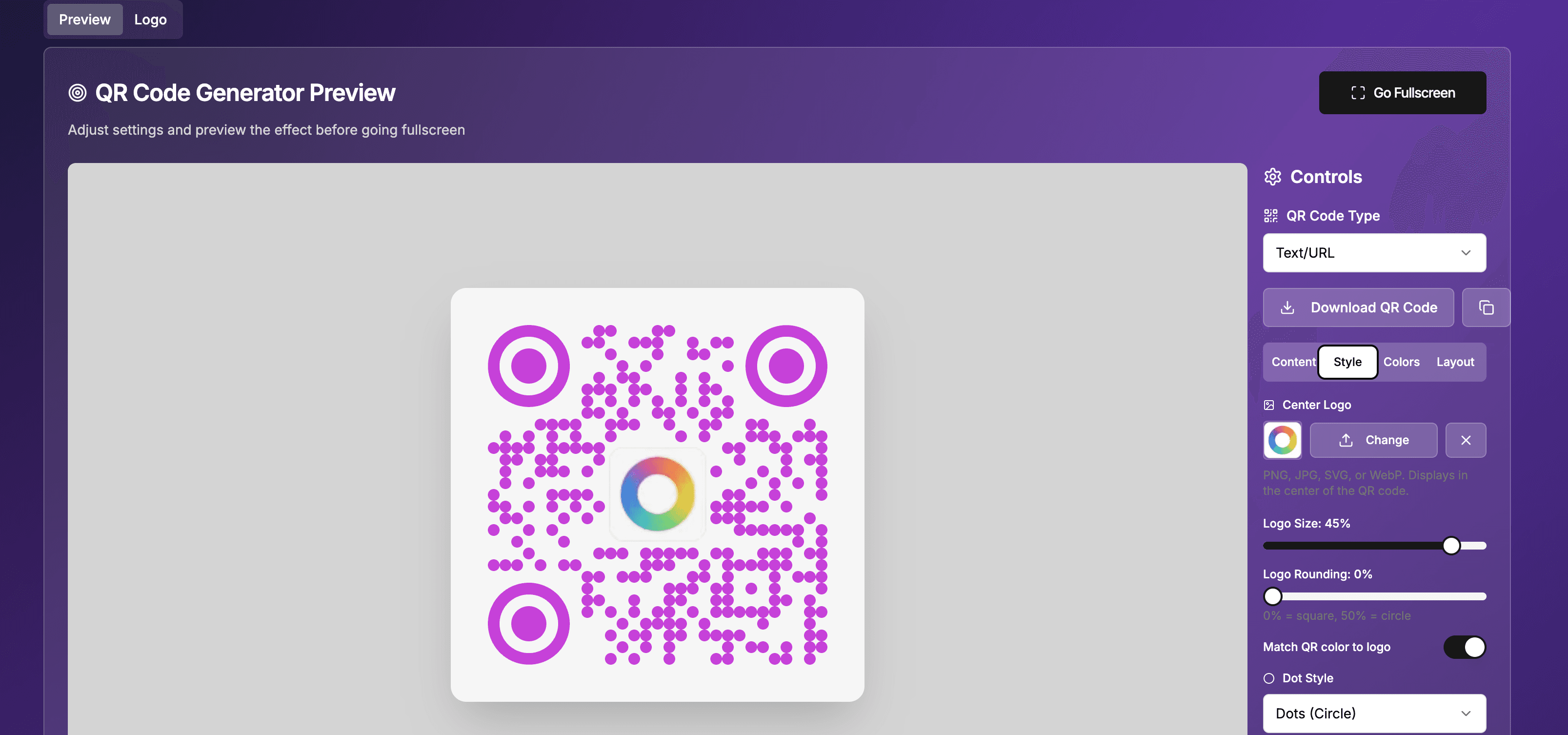
The most impactful feature of the enhanced QR Code Generator is the ability to upload any logo image and display it prominently in the center of the QR code. Here's how it works:
Upload Any Image Format: The generator accepts PNG, JPEG, SVG, and WebP files. Upload your company logo, app icon, social media avatar, or any image that represents your brand.
Automatic Error Correction: When a logo is present, the QR code automatically increases its error correction level to "H" (the highest level). This adds redundancy to help a scanner recover data, but does not guarantee that a large or poorly placed logo will scan. Keep the logo small and test the result.
Adjustable Logo Size: Control how much of the QR code your logo occupies with a simple slider, ranging from 10% to 50% on the Logo Size control. Find the right balance between brand visibility and scan reliability.
Background Dot Hiding: The area behind your logo is automatically cleared of QR code dots, creating a clean, professional look rather than overlapping your image on top of the pattern.
Intelligent Color Matching
When you upload a logo, the QR Code Generator can automatically extract the dominant color from your image and apply it to the QR code pattern. This creates an instant visual connection between your logo and the surrounding code.
How It Works: The generator analyzes your uploaded image, samples pixels across the entire image, and identifies the most prominent color while filtering out white and black (which would make the code invisible against most backgrounds). The result is a QR code color that naturally complements your logo.
Toggle Control: The auto-color matching feature can be toggled on or off. When disabled, you retain full manual control over the QR code foreground color. When enabled, uploading a new logo immediately adjusts the code color to match.
Manual Override: Even with auto-color enabled, you can manually adjust the detected color afterward in the Colors tab. This gives you the convenience of automatic detection with the flexibility of manual fine-tuning.
Dot Styles: Beyond the Grid
Traditional QR codes use sharp-edged square modules that create the familiar but harsh grid pattern. The enhanced QR Code Generator offers six distinct dot styles that dramatically change the look and feel of your code:
Square (Classic): The traditional QR code appearance with sharp, grid-aligned squares. Best for contexts where a recognizable QR code look is important.
Rounded: Each module has softly rounded corners, creating a more modern and approachable appearance while maintaining the grid structure. A subtle upgrade from classic squares.
Dots (Circle): Replaces squares with circular dots, creating an elegant, contemporary look. This style works well for design-forward brands and creative applications.
Classy: A unique style where modules have an organic, slightly irregular shape. Creates a distinctive, premium feel that stands apart from standard codes.
Classy Rounded: Combines the organic character of the classy style with rounded edges for a softer, more refined appearance. Ideal for luxury brands and upscale applications.
Extra Rounded: The most dramatic rounding option, where modules become nearly pill-shaped. Creates a bold, modern aesthetic that looks great with vibrant colors.
Corner Customization
Beyond the main dot pattern, you can independently style the three corner markers (the large squares in the corners of every QR code). These anchor patterns are what scanners use to identify and orient the code:
Corner Square Style: Choose from Square, Rounded, or Extra Rounded for the outer square of each corner marker.
Corner Dot Style: Select Square or Circle for the inner dot of each corner marker.
Mixing and matching corner styles with dot styles creates unlimited combinations. For example, using circular dots with extra-rounded corners creates a completely soft, organic-looking code, while pairing rounded dots with square corners maintains a more structured feel.
Style Presets for Quick Setup
Not sure where to start? The Style tab includes four one-click presets that set dot style, corner square style, and corner dot style simultaneously:
Classic: Square dots with square corners. The traditional QR code look.
Rounded: Rounded dots with extra-rounded corners and circular corner dots. A modern, friendly appearance.
Dots: Circular dots with rounded corners and circular corner dots. Clean and contemporary.
Classy: Classy-rounded dots with extra-rounded corners and circular corner dots. Premium and distinctive.
Each preset is a starting point. Apply a preset, then adjust individual settings to fine-tune the result.
Practical Applications for Branded QR Codes
Business Cards and Presentations
Upload your company logo and use your brand colors to create QR codes that feel like a natural extension of your visual identity. Display during presentations, on digital signage, or on shared screens during meetings.
Event Branding
Conference organizers can create QR codes that match event branding. Upload the event logo, let the color match do its work, and display codes for registration, WiFi access, schedules, and feedback forms that all share a cohesive visual identity.
Retail and Restaurant Displays
Businesses displaying QR codes for menus, loyalty programs, or payment can make these codes part of their brand experience rather than a visual afterthought.
Social Media Sharing
Create aesthetically pleasing QR codes for social media profiles that match your online branding. The rounded dot styles and custom colors make codes that look at home in social media content.
Marketing Materials
When displaying QR codes on screens at trade shows, retail locations, or digital billboards, branded codes reinforce your identity and stand out against competitors using generic black-and-white codes.
Tips for Scannable Branded QR Codes
While the enhanced generator handles most technical details automatically, keep these guidelines in mind:
-
Maintain Contrast: Ensure sufficient contrast between the QR code color and background color. Scanning relies on this contrast, so avoid combining similar-toned colors.
-
Logo Size Balance: A larger logo looks more impressive but reduces the scannable area. Start with the default 30% and increase gradually while testing scannability.
-
Test Different Dot Styles: Dot styles change the appearance of the modules, not the content encoded. If you're encoding a long URL, simpler dot styles (square, rounded) may scan more reliably than complex ones.
-
Use Error Correction Wisely: With a logo present, the generator uses "H" level error correction. This adds more data to the code, making it denser. For very long URLs with large logos, consider using a URL shortener.
-
Test on Multiple Devices: Different phone cameras and QR scanning apps may handle styled codes differently. Test on both iOS and Android devices to ensure compatibility.
Getting Started
Start with a short URL and test as you style:
- Open the QR Code Generator
- Enter your URL or content in the Content tab
- Switch to the Style tab and upload your logo
- Watch as the QR code color automatically adjusts to match your brand
- Choose a dot style that fits your aesthetic (or try a preset)
- Fine-tune colors in the Colors tab if needed
- Go fullscreen for maximum display impact, or download as PNG for other uses
Check Before You Share
Scan the final code with more than one phone, including from the expected viewing distance. If a scan fails, reduce Logo Size, increase Quiet Zone, and use a dark pattern on a light background. The QR setup and troubleshooting guide explains each control.