
Virtual Aquarium: Turn a Spare Screen into a Living Fish Tank
Published on September 11, 2026
Virtual Aquarium: Turn a Spare Screen into a Living Fish Tank
A real aquarium is a lot of glass, water, and weekly maintenance. The new Aquarium effect in WebLight gives you the part people actually want — slow fish, shifting underwater light, the occasional bubble — on a monitor, tablet, or TV you already own. Open it in a browser tab, pick a scene, and leave it running.
What the Aquarium effect is
Aquarium takes a habitat photograph and brings it to life in the browser. Over the still background it draws:
- Fish that suit the habitat. Each scene has its own species — clownfish and schooling tropicals over a reef, bettas with trailing veil fins in a planted tank, community fish around a driftwood log, silvery blue-grey fish in a limestone grotto. They're drawn and animated in the browser, not clipped from a video, so their fins ripple and they turn and drift rather than looping.
- Underwater light. A moving net of caustic light plays across the scene, soft god rays sway from above, and a depth haze settles toward the bottom of the tank.
- Bubbles and marine snow. Bubble streams rise from the lower corners, and fine particles drift through the water the way they do in a real tank.
Every fish gets a random size and starting position on each page load, and the bettas in the Planted Forest scene are drawn from real colour varieties — halfmoon red, royal blue, steel blue, turquoise, mustard gas and more — so the tank looks a little different each time you open it.
It's an ambient effect, not a lighting tool. There's no colour or colour-temperature control, because the water colour belongs to the scene; the one shared control is Brightness.
The four scenes
Coral Reef is the bright one — orange clownfish and blue-and-yellow schooling fish over a sunlit reef. Daytime water is clear aquamarine; at night it drops to deep navy. It reads well from across a room, which makes it a good pick for a lobby or waiting area.
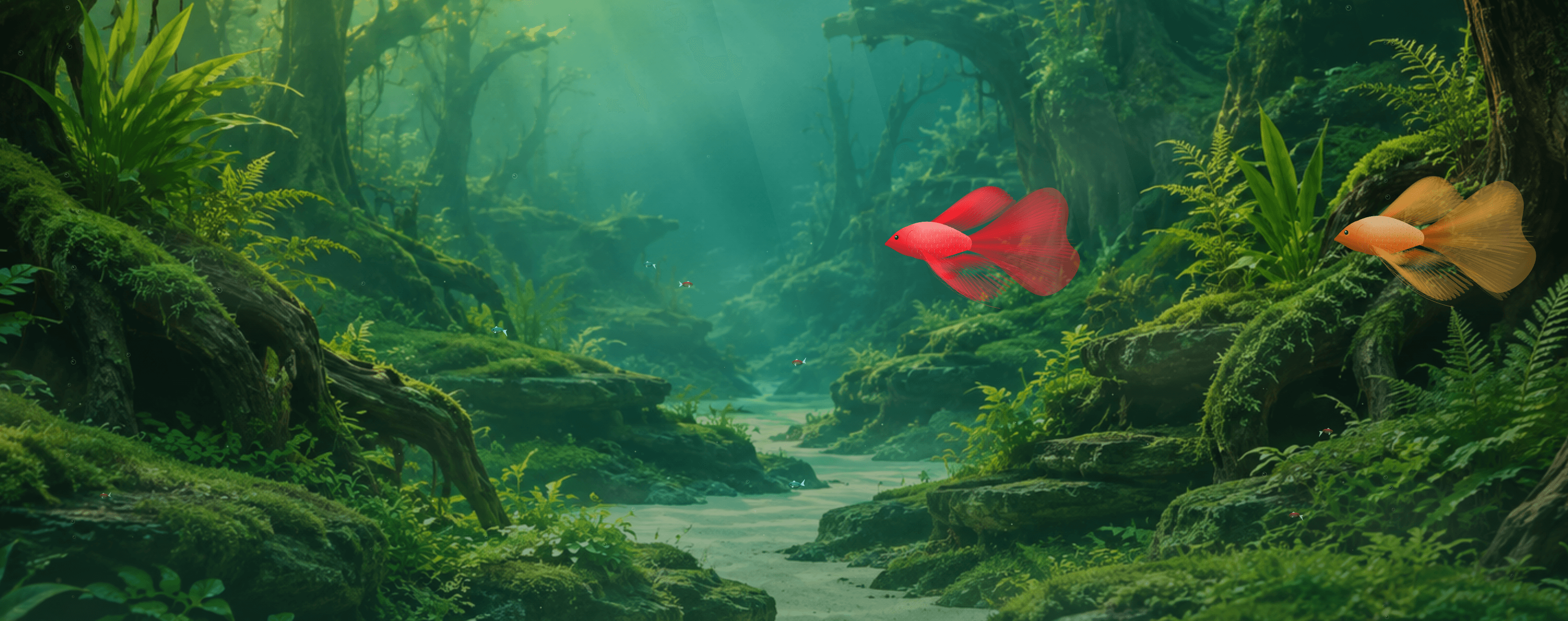
Planted Forest is the default and the scene in the image above: one or two large bettas over a school of small tetras, in green-tinted water with sunlight filtering through the plants. The bettas are the show here — slow, deliberate, with fins that trail behind them.
Driftwood Log is the warm one. Three groups of community fish in amber-tinted freshwater, with the largest group gathered low around the log.
Rocky Grotto is the coolest and darkest. Silvery and blue-grey fish against a limestone cave backdrop. Day lighting is a bright blue-white; night is close to black with faint blue caustics, which makes it the most sleep-friendly of the four.
Each scene ships with its own day and night photograph, and the caustic light, haze and particle tints are matched to the water colour of whichever one you're looking at.
Day, night, or follow the clock
The Time of Day control has three settings:
- Day and Night lock the scene to that lighting.
- Auto (follow time), the default, reads your device's clock and switches to day at 6 AM and to night at 6 PM local time. It checks once a minute, so the change lands within about sixty seconds of the threshold.
Night mode isn't just a darker photo — it also softens the caustic light and dims the god rays, so the tank settles down in the evening rather than simply going dim. Left on Auto on a desk monitor, it does the right thing all day without you touching it.
How to set it up
- Open the Aquarium effect on the screen you want to dedicate to it. It scales to whatever size it's given, so a phone propped on a shelf works as well as a second monitor.
- Pick a Scene. Planted Forest is the default; switch to Coral Reef, Driftwood Log or Rocky Grotto to change both the backdrop and the fish.
- Set Time of Day — leave it on Auto to follow your clock, or lock it to Day or Night.
- Adjust Brightness to the room. The default is 80. Somewhere around 30–40 suits a bedroom at night; 90 holds up in a bright lobby.
- Go Fullscreen. The on-screen controls fade out after five seconds without mouse movement, so the tank gets the whole display.
You'll know it's working when fish are gliding across the scene, bubbles are rising from the lower corners, and fine particles are drifting through the water.
Where it works well
- A second monitor during focused work. Planted Forest or Coral Reef on Auto at Brightness 75. The motion sits at the edge of your attention — enough to glance at, not enough to pull you out of a document.
- A bedroom screen at night. Rocky Grotto or Planted Forest, locked to Night, Brightness 30–40. The fish stay visible but the scene is dim enough to fall asleep to.
- A lobby or waiting-room display. Coral Reef, Day, Brightness 90. Steady, bright, and calmer than a muted news channel.
- Beside your camera on a call. Planted Forest, Day, Brightness 70–80. The green water throws a soft fill onto your face, and the bettas are visible in the background without being loud.
Tips
- It runs on a 2D canvas, not WebGL, so it's happy on older or lower-powered machines. If it stutters, the usual culprit is hardware acceleration being switched off in the browser — turn it on and reload. On a very high-resolution display, shrinking the browser window before you go fullscreen also helps, since the canvas draws fewer pixels.
- The photos load over the network; the fish don't wait for them. If you see fish over a plain dark fill, the background image just hasn't arrived yet. If it never does, check your connection and reload.
- Turn off display sleep on whichever device is showing it. The effect doesn't keep your screen awake on its own.
- Jump straight to fullscreen by adding
#fullscreento the end of the effect URL — handy for a device you set up once and don't want to touch again.
FAQ
Does it have sound? No. Aquarium is a purely visual effect. If you want a bubbling filter or water sounds, pair it with an audio track of your own.
Will it remember my scene and brightness? No. Scene, Time of Day and Brightness reset to Planted Forest, Auto and 80 on every page load. If you want a zero-setup tank, those defaults are a good place to leave it.
Can I choose which fish appear? Not individually — the species are tied to the scene. Pick a scene to pick its fish. Colour varieties, sizes and starting positions are randomised each time the page loads.
Does it work on a phone or tablet? Yes. The animation fills whatever screen it's on. Fine detail like a betta's fin rays is less visible on a small screen, but the scene, lighting and motion are all there.
Can I use it as a video-call background? It fills a screen, not a camera feed. Run it on a monitor beside or behind your camera, or take a screenshot and use your call software's virtual background feature.
Try it now
If you've ever left a fish-tank video running for the calm of it, this is the same idea with a scene picker and a clock. Open the Aquarium effect on a spare screen, or browse the rest of the ambient and atmospheric effects for more backgrounds built the same way.
Related Articles
Fireplace Screen Effect: Cozy Ambient Light for Focused Work
Turn a spare screen into a flickering fireplace for a warmer home office — what it does, how to set it up, and why it works for deep focus.
Aurora Borealis Effect Online: A Free Chill Stream Backdrop
How streamers use WebLight's Aurora Borealis effect as a moving, no-download backdrop for chill streams, lo-fi sessions, and creative content.