
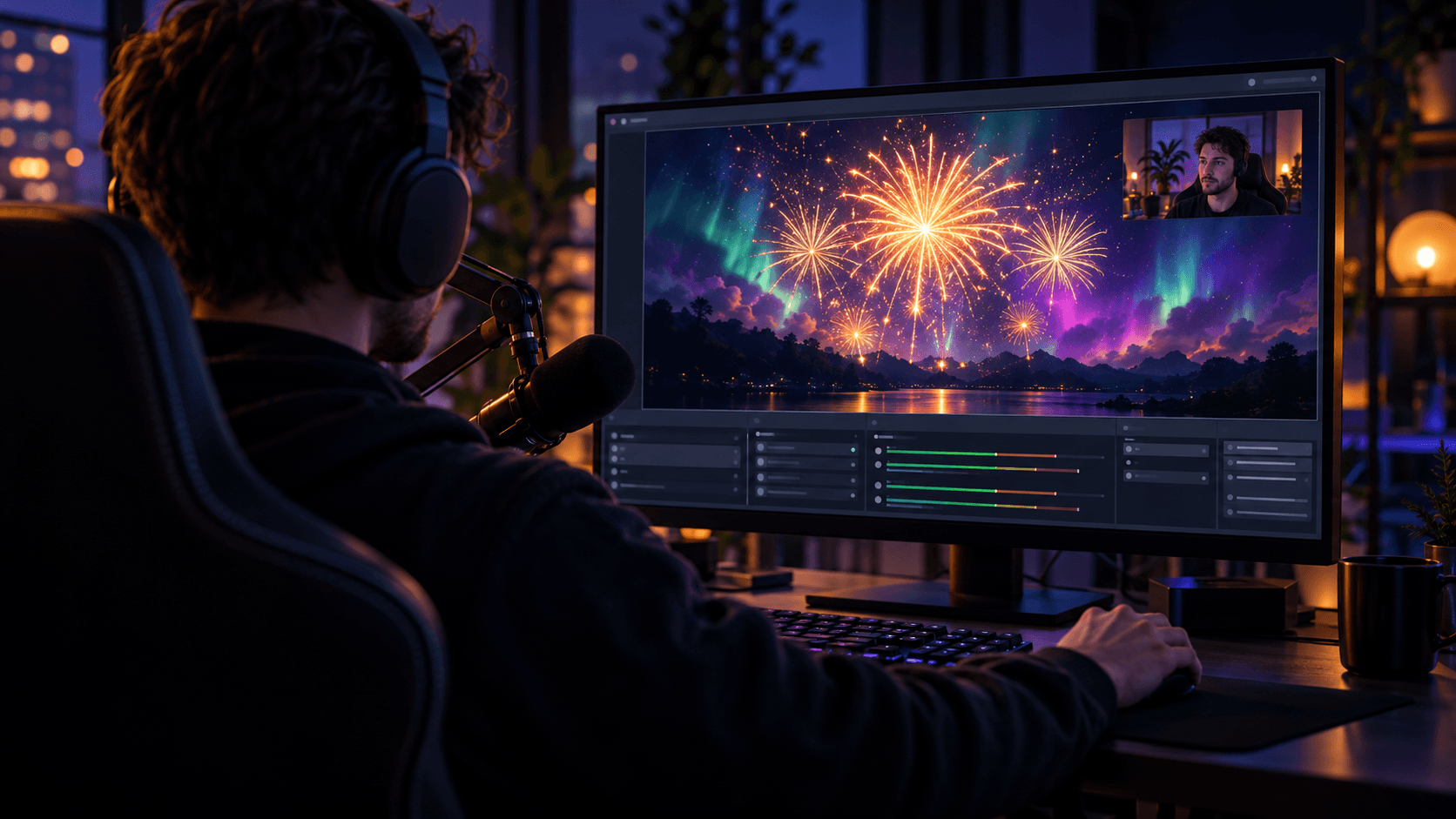
WebLight + OBS: 7 Browser Source Effects for Your Stream
Published on October 01, 2026
WebLight + OBS: 7 Browser Source Effects for Your Stream
OBS Studio can show any web page as a source, and that makes it an easy home for OBS browser source effects. Every WebLight effect can now give you a clean link, with your settings written into it and none of the site menus. Paste it into a Browser source and the effect runs in your scene, live, with no video file to render and no loop that visibly repeats.
This post is the ideas list. The click-by-click setup is in the OBS browser source guide, so we won't repeat it here. The short version: set an effect up the way you like, open Share & OBS at the bottom of the control panel, copy the link, and paste it into the source's URL field.
One thing to know before you start. Stage links draw on a black background for now, so an effect covers whatever sits beneath it in the scene. That suits the ideas below, which use WebLight as a backdrop, a panel or a full scene. A transparent option for overlays on top of a game isn't available yet.
1. A fireworks backdrop for milestone streams
Hit a follower goal, a subathon finale or a New Year's countdown, and the scene deserves a moment. Fireworks Projector has a Display menu with a full-screen night sky, plus themes such as Celebration, New Year's Eve and Fourth of July. Raise Launch rate for a finale, set Finale to Non-stop for a big burst, and put your webcam layer on top of the sky. Fireworks has sound, so tick Control audio via OBS to give it its own fader in the Audio Mixer.
2. A slow aurora behind your camera
For chill streams, study-with-me sessions and late-night chat, a calm moving sky works better than a still image. Aurora Borealis has a Speed control, so turn it down for a drift that reads as atmosphere. We wrote about the look in the aurora stream backdrop post.
3. Particles in your channel colours
Particle Effects has seven systems: Stars, Snow, Rain, Sparkles, Fireflies, Bubbles and Sparks. Sparkles at a low count with a gentle velocity makes a quiet backdrop for a face-cam panel. Recolour it to match your brand. The full settings walkthrough is in Particle Effects for Streaming.
4. A "starting soon" scene with a real timer
The scene viewers see for the first five minutes is usually a static image. Put the Countdown Timer in a Browser source instead. Set the minutes you need, pick a look, and the scene counts down on its own. Pair it with a particle background and the waiting room has something to watch.
5. A scrolling banner for announcements
Give chat something to read between segments. The LED Banner scrolls your text in a dot-matrix style, and its built-in presets include Welcome and Thankyou. Use it for a schedule, a Discord invite or a thank-you to new subscribers. Our LED sign guide covers the controls in depth.
6. A clock in the corner
Charity streams, marathons and watch parties all run on the clock. The Digital Clock comes in Split Flap, LED, LCD, Modern, Neon and Matrix styles, with 24-hour format and seconds as options. Size the source small, place it in a corner, and viewers always know what time it is for you. The Digital World Clock is there for multi-timezone audiences.
7. A QR code for the giveaway
Show a QR code for your link-in-bio or giveaway form on a break screen. Viewers on a phone can scan straight from the stream. Put it next to the countdown and the wait turns into sign-ups.
Tips for using any of these in OBS
- Match the canvas. Set the source's Width and Height to your canvas size, usually 1920 and 1080, rather than stretching an 800 × 600 box.
- Copy a new link after any change. The link holds the settings it was copied with. Change a slider, copy again, paste again.
- Some things stay on the device. Uploaded images, a camera, Music Reactive and long text can't travel in a link. The panel lists what it left out under the link.
- Keep it running between scenes. Untick Refresh browser when scene becomes active so a scene change doesn't restart the effect.
For the full troubleshooting list, see the OBS browser source guide. You can also explore all Creative effects for more to try.
Frequently Asked Questions
Do I need a plugin to use WebLight in OBS?
No. OBS Studio includes a Browser source. Add one, paste a WebLight link into URL, and you're done.
Why does the link end in ui=hidden?
That tells WebLight to show only the effect, with no menus, header, ads or control panel in your capture. Copy the Settings link instead if you want the normal page with your settings applied.
Can I put an effect over my gameplay?
Not yet. Stage links draw on black, so the effect covers what's below it in the scene. Use it as a backdrop, a panel or a full scene for now.
Will my settings survive if WebLight updates?
Yes. If a setting in the link is renamed or removed, that one setting returns to its default and the rest of the link still applies.
Does it cost anything?
WebLight effects are free to use in the browser, including as an OBS browser source.
Try it
Pick one idea, open the effect, and copy its link from Share & OBS. Start with Fireworks Projector, or follow the setup guide first.
Try These Effects
Fireworks Projector
A free fireworks show for a projector, TV or laptop. Project bursts onto a wall or window on true black, or switch to Full screen for fireworks over a harbour or city skyline, with no projector needed. Choose New Year's Eve, Fourth of July, Celebration or Wedding gold, add a grand finale, and turn on the booms if you like.
Aurora Borealis
Mesmerizing northern lights effect with flowing colors
Particle Effects
Dynamic particle systems with multiple presets for immersive visual experiences
Countdown Timer
A stunning countdown timer with customizable backgrounds, music, and visual effects. Perfect for focus sessions, Pomodoro technique, breaks, and productivity timing with beautiful particle effects and multiple clock styles.
LED Banner
Free online LED scroller and banner with running text. Customize colors, fonts, and scroll speed for announcements, events, streams, and signage — no app needed.
Digital Clock
Modern digital clock with multiple display styles including split-flap, LED, LCD, neon, and matrix effects. Perfect for retro gaming setups, modern workspaces, and ambient displays.
QR Code Generator
Generate and display customizable QR codes for sharing URLs, contact information, WiFi credentials, or any text data. Perfect for presentations, events, and digital displays.
Related Articles
New Year's Eve Projector Party Ideas
Eight ways to use a projector, or just a TV, at a New Year's Eve party: from a slow starfield at dinner to fireworks at midnight, with the settings for each.
How to Project Fireworks on a Wall
Put a fireworks show on a wall, window or garage door with a projector and a browser, with no smoke and no noise complaints. Set it up and time the finale.
Split Light Photography Effect: How to Set Up Dramatic Portrait Lighting
Get the classic half-lit, half-shadow portrait look using your screen — no lighting kit, just Split Ratio, Brightness, and Color Temperature.