
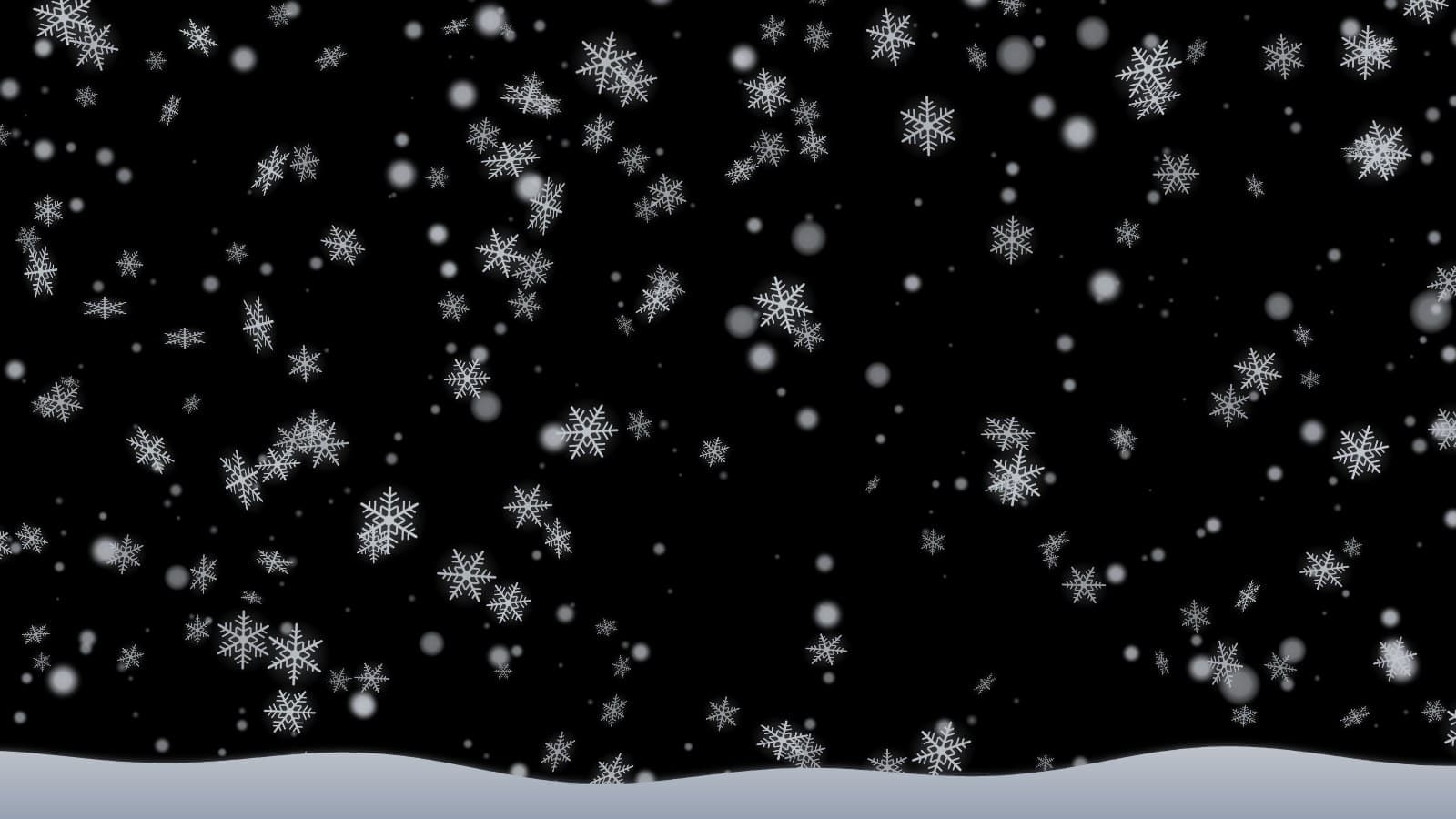
How to Make It Snow Indoors with a Projector
Published on September 25, 2026
How to Make It Snow Indoors with a Projector
Snow is the easiest projection to get right. There's no character to line up and no story to follow. Nobody can tell whether the flakes are "in the right place," and it looks good on almost any surface. With an ordinary projector and a browser you can turn a living-room wall into a winter night, fill a shop window with a steady snowfall, or give a school play a blizzard on cue.
This guide walks through the setup, from choosing a surface to picking the kind of snowfall that suits the room, using the free Falling Snow Projector.
What you need
- A projector. Any home, office or portable projector works. Brighter is better if the room won't be fully dark, but snow is forgiving because it's mostly black.
- A computer or streaming device with a browser. A laptop connected over HDMI is the simplest option. The snow is drawn live in the browser, so there are no video files to download or loop.
- A surface for the light to land on. This could be a pale wall, a ceiling, a pull-down screen, or, for a window display, a translucent material hung in the window.
That's it. There are no special "snowflake projector" lenses, gobos or paid video packs.
Step 1: Pick your surface
Where you project changes how you set up everything else.
A wall or ceiling. This is the simplest setup. Point the projector at a pale, matte wall and you're done. Snow works especially well across a whole wall, because the black between the flakes blends into the dark room and the snow seems to fall out of nowhere.
A window. Clear glass lets the light straight through, so you need something in the window to catch it: rear-projection film, frosted window film or a sheer white curtain pulled taut. The projector sits inside the room and shines onto the back of the material, and people outside see the snow glowing in the window. How to Project Christmas Decorations on a Window covers materials and mounting in detail.
A stage or party backdrop. A white cyclorama, a pale sheet or a projection screen behind performers all work. Keep performers out of the beam where you can, or accept that a little snow will fall on them too.
Step 2: Position the projector
Put the projector where it can fill the surface without anyone walking through the beam. Then open the effect on the computer connected to it and select Play Fullscreen.
The snow fills the whole screen rather than sitting in a letterboxed box. If you only want to cover part of a wall or a single window pane, open the Placement group:
- Scale shrinks or enlarges the snowfall.
- Horizontal position and Vertical position move it.
- Mirror horizontally flips the picture for rear projection through a window. Snow looks much the same either way, but mirroring keeps the Wind blowing the direction you set as seen from outside.
- Flip vertically is for a projector mounted upside down that can't flip its own image. Without it, the snow would fall upward.
Step 3: Choose the snowfall
The Mode control sets the character of the snow. Each mode is a different weather, not just a density setting:
- Gentle snowfall is a calm, steady fall with flakes at different depths. Distant flakes are small and slow, and near ones are big and soft. It's the one to leave running all evening.
- Heavy snowfall is a dense, faster storm. It's good for a dramatic backdrop, or when you're projecting from far away and each flake ends up small.
- Large flakes mixes in big, slowly tumbling snow crystals with six branching arms. Up close on a window this is the most "Christmas card" of the five.
- Blowing snow drives the flakes sideways in gusts, streaking them as they fly. Use it for a blizzard scene in a play, or a wild winter night outside a "window."
- Magical sparkle adds a twinkle to the flakes, a faint gold-and-ice tint and the occasional flash of light. It suits a fairy-tale or holiday-party mood more than realistic weather.
Then tune it:
- Amount sets how much snow is falling. 50% is each mode's usual amount, so lower it for a sparse, quiet fall.
- Wind pushes the snow left or right on top of whatever wind the mode already has. A little wind makes gentle snow feel less like a screensaver. For a window display, blow the snow toward the side people approach from, so it drifts across their view.
- Fall speed and Flake size do what they say. Large, slow flakes read better from a distance. Small, fast ones look more like real sleet.
Step 4: Let it settle (optional)
Turn on Settle at the bottom and the nearer flakes start landing along the bottom edge, slowly building a rolling snowdrift. Drift depth sets how tall it can grow. Lower it and the drift sinks to match.
The drift is the brightest thing on screen, because it's a solid band of white where everything else is mostly black. On a projection sitting just above a windowsill, a shallow drift looks convincing. On a dim projector in a room that isn't fully dark, a deep drift can wash out the rest of the picture. Start around 10% and adjust from there. Turning Settle at the bottom off clears the drift instantly.
Step 5: Get the brightness right
Darken the room as much as you can. Projectors can't project black, so any ambient light lifts the background to grey and the snow loses contrast. For a window display, that means starting after dusk.
Use the Brightness slider in the Light group to balance the snow against the room. Full brightness isn't always best. In a dark room a slightly dimmer snowfall looks softer and more natural, and it makes the projector's own grey "black" less noticeable. Brightness goes all the way to 0%, which blacks out the output without closing anything, a handy "curtain" between scenes at a performance.
If it doesn't look right
You'll know it's working when the room is dark except for the snow, and the flakes seem to fall at different distances instead of sliding down as one flat layer. If yours doesn't look like that:
- The background is grey, not black. This is the projector's black level plus light in the room. Turning down Brightness won't fix it. Darken the room, and keep lamps and streetlight off the surface.
- The window shows nothing. The light is passing through bare glass. Hang film or a curtain for it to land on.
- Flakes look like tiny dots from across the room. Raise Flake size, or switch to Large flakes.
- The snow falls upward. Flip vertically is on, or the projector is ceiling-mounted with its own flip setting off. Use one or the other, not both.
Ideas to try
- A snowy window on a snowless night. Use rear-projection film, Large flakes mode, light Wind, and a shallow drift sitting on the sill.
- A winter party wall. Try Gentle snowfall at 60–70% Amount across a whole wall, with the room lights low.
- A school play blizzard. Use Blowing snow at high Amount. Drop Brightness to 0% between scenes and bring it back up on cue.
- A cozy evening. Put snow on the wall and a crackling fire on the TV with Fireplace.
Where to go next
Snow is also one of the scenes in Christmas Window Scenes, alongside Santa, an elf and a snowy Christmas village. Use that effect when you want the snow to share the evening with animated characters. Use the Falling Snow Projector when you want full control over the snowfall itself. Once the holidays are over, the same projector setup runs Halloween Projector Scenes next October. For more ideas, browse everything built for projectors in Projector Effects.
Try These Effects
Falling Snow Projector
Make it snow on a window, wall or TV. Choose gentle snowfall, a heavy storm, big drifting crystals, wind-blown snow or a magical sparkle, and let it settle along the bottom edge. Everything else stays black, so only the snow lights up.
Christmas Window Scenes
Project falling snow, Santa, a busy elf, a reindeer, a snowman, a toy train circling the tree, a crackling fireplace or a snowy Christmas village onto a window, wall or TV. Hologram scenes loop on black, so only the decoration lights up; full scenes fill a wall with a complete Christmas picture.
Fireplace
A realistic animated fireplace with layered flames, glowing logs, embers, smoke, and sparks
Halloween Scenes
Choose wandering spirits, watchful eyes, glowing jack-o’-lanterns, a zombie at the glass or a Victorian phantom. Loop a scene on your wall or position it for a floating projection illusion.
Related Articles
New Year's Eve Projector Party Ideas
Eight ways to use a projector, or just a TV, at a New Year's Eve party: from a slow starfield at dinner to fireworks at midnight, with the settings for each.
How to Project onto a Floor Without Mounting a Projector on the Ceiling
Floor projection usually means a ceiling rig. Three setups that work from a table or shelf, and how to fix the stretched picture an angled projector gives.
How to Project Fireworks on a Wall
Put a fireworks show on a wall, window or garage door with a projector and a browser, with no smoke and no noise complaints. Set it up and time the finale.